How to use Wireshark and tip
Today like to share some tips for wireshark, which some of you might not notice. Wireshark is a free tool that let you capture packet or monitor your network status. This is a mostly common tool if your are testing or debug network problem.
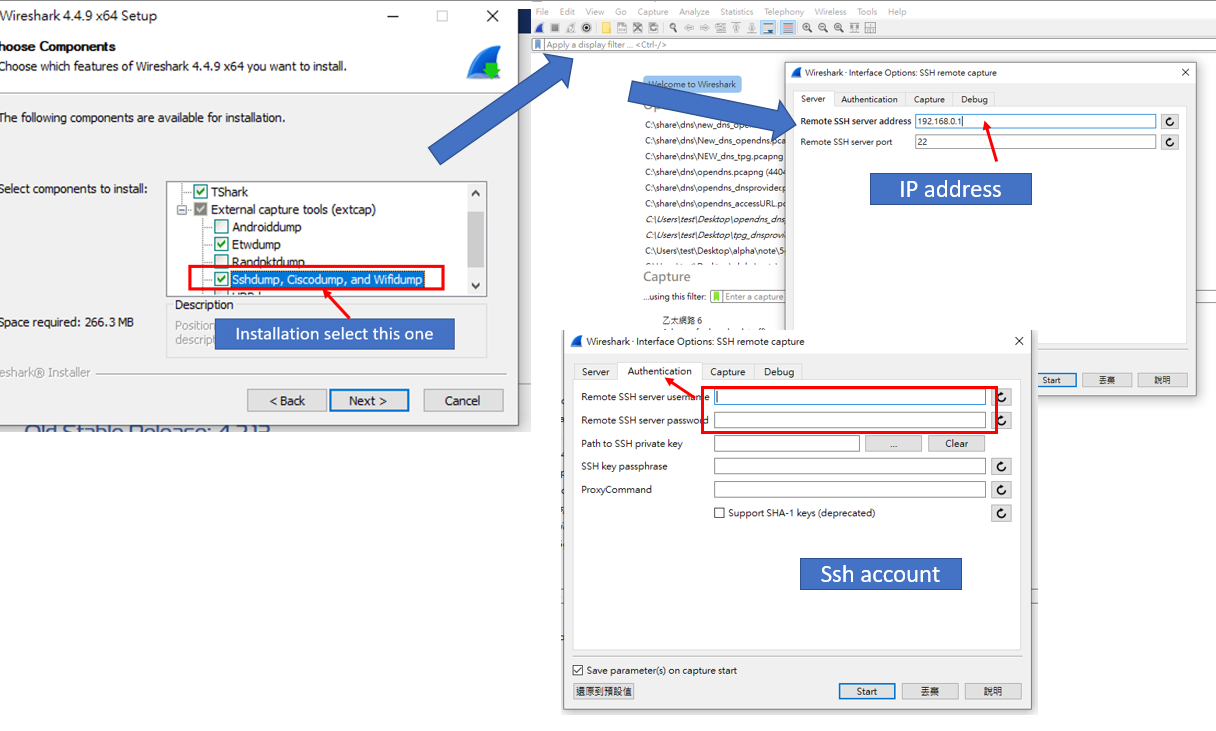
Remote Capture packet
You can use remote tool like ssh related tool to capture packet. This is useful if you don’t want to save in your router, instead save in your labtop.
Thi smethod allow you to remote capture wireshark and save the file in your labtop, without worry about the disk space or memory.
WireShark filter trick
Filter IP address
When you want to filter Ip address for long period of time then you need to use below setting, else it will capture a massive file.
Filter range of condition or port
- Filter Multiply port
This is a bad way of this:
1 | tcp.port == 8080 or tcp.port==443 |
- Filter multiply port with range
A better way to achieve with multply port you can use this method:
1 | tcp.port in {8080, 443,80, 100..150} |
Change your IP to readable name
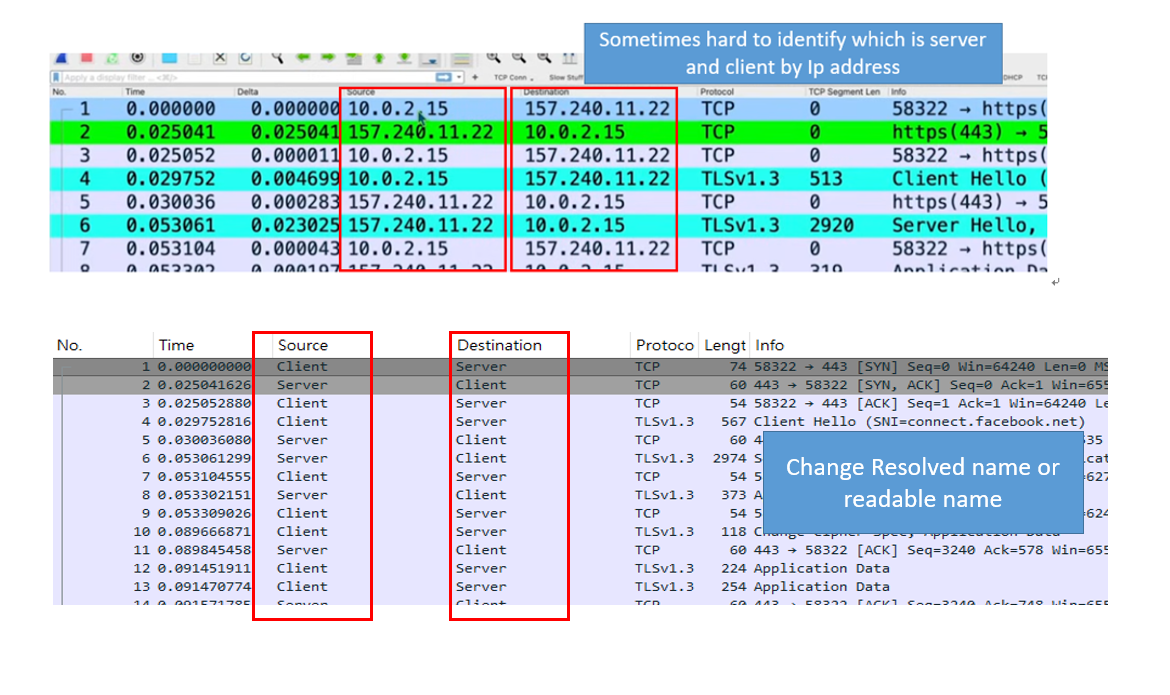
When you capture packet you will see many different IP address, a greater way we can change ip into readable name which you specify
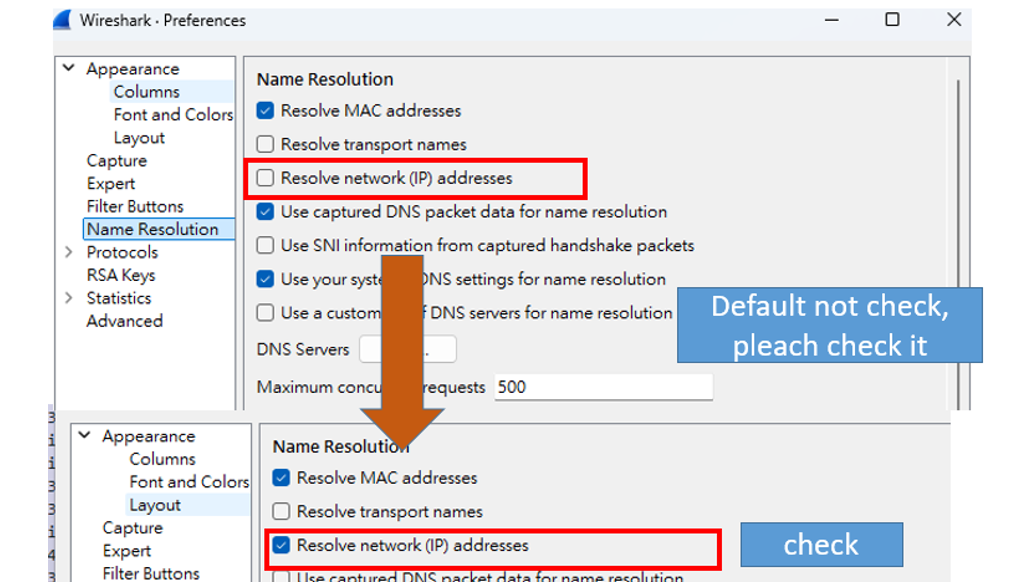
Head to Wireshark>preference>Name Resolution and check Resolve Network(IP) Address
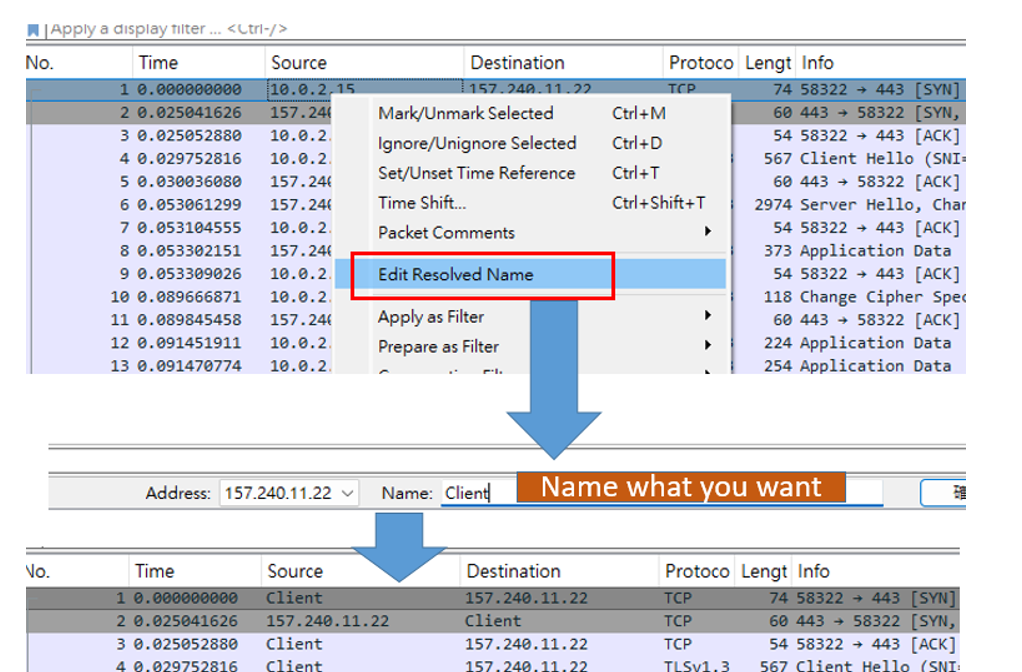
You just have to select the IP and right click > click edit resolved Name and just change it to name you like, ex: server or client. This is pretty easier to read if you have many IP address which might be hard to see which IP you want to see.
To change back to IP address just do the same step, and remove the name leave empty it will return to IP
Now let compare set before and after you can see the different when show IP address hard to read